How to Restore a MetaMask Wallet With a Seed Phrase (2026)
Restoring an old wallet on a new laptop or phone comes down to importing the 12 words in their original order. Recent MetaMask versions tuck "Use…
New laptop, new phone, a fresh install, or a wallet handed over from someone else's tutorial — as long as you still have the 12 recovery words, the wallet can be rebuilt completely on a new device. Recent MetaMask versions split the recovery path across two buttons — first "I have an existing wallet", then "Import using Secret Recovery Phrase" — which is why people often cannot find it. This walkthrough follows the real interface, step by step, with real screenshots.
First: why a seed phrase can restore a wallet
A recovery phrase (MetaMask calls it the Secret Recovery Phrase) is not a password — it is another way of writing your private keys. Twelve words derive every account address and private key you own, so the same phrase rebuilds the same addresses anywhere. The reverse is also true: the phrase is the wallet, and whoever holds it holds the assets.
So the part that matters is not the clicking, it is three hard rules:
- Never screenshot or photograph it — photo libraries sync to the cloud and are readable by apps, which is the most common leak;
- Never store it on a connected device — no notes apps, saved chats, cloud drives or email drafts. Paper or a metal backup plate only;
- Never "verify" it on a website — any site asking you to type 12 words is phishing. Only the wallet app's own official interface.
Before you start: three checks
- Use the official source — the official MetaMask store listing or the official website, never a third-party installer. Our guide to spotting fake exchange sites applies here too;
- The phrase is in your hands — 12 or 24 English words, in the original order, spelled correctly. Failed restores are almost always spelling or ordering;
- Use a clean environment — never restore on a virtual machine, remote desktop or a shared computer.
Step by step (real screenshots)
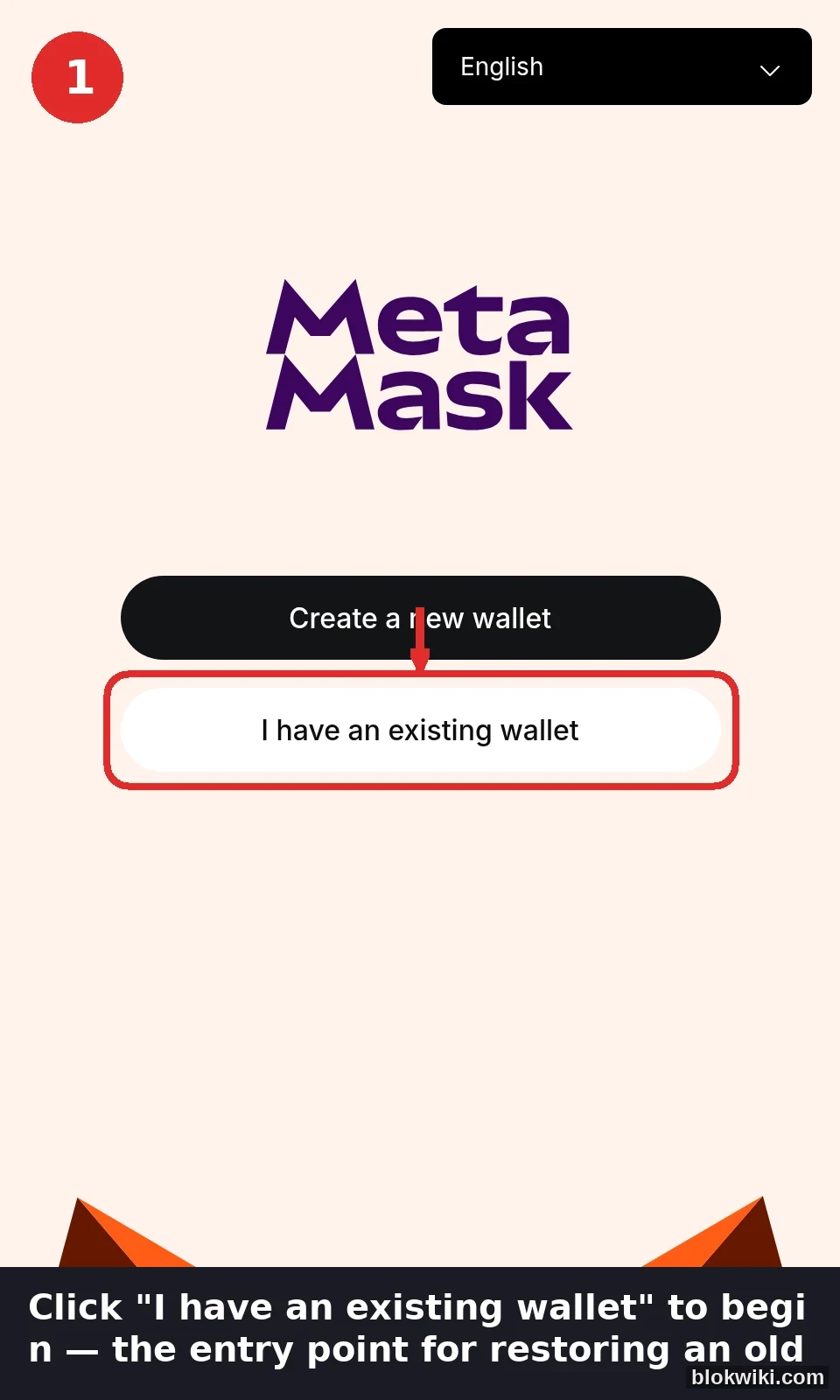
Step 1: open MetaMask and click "I have an existing wallet"
The onboarding screen offers two buttons. To restore an old wallet click the lower one — "I have an existing wallet". The upper "Create a new wallet" is the new-wallet path: MetaMask generates a brand-new recovery phrase there, unrelated to your old assets.
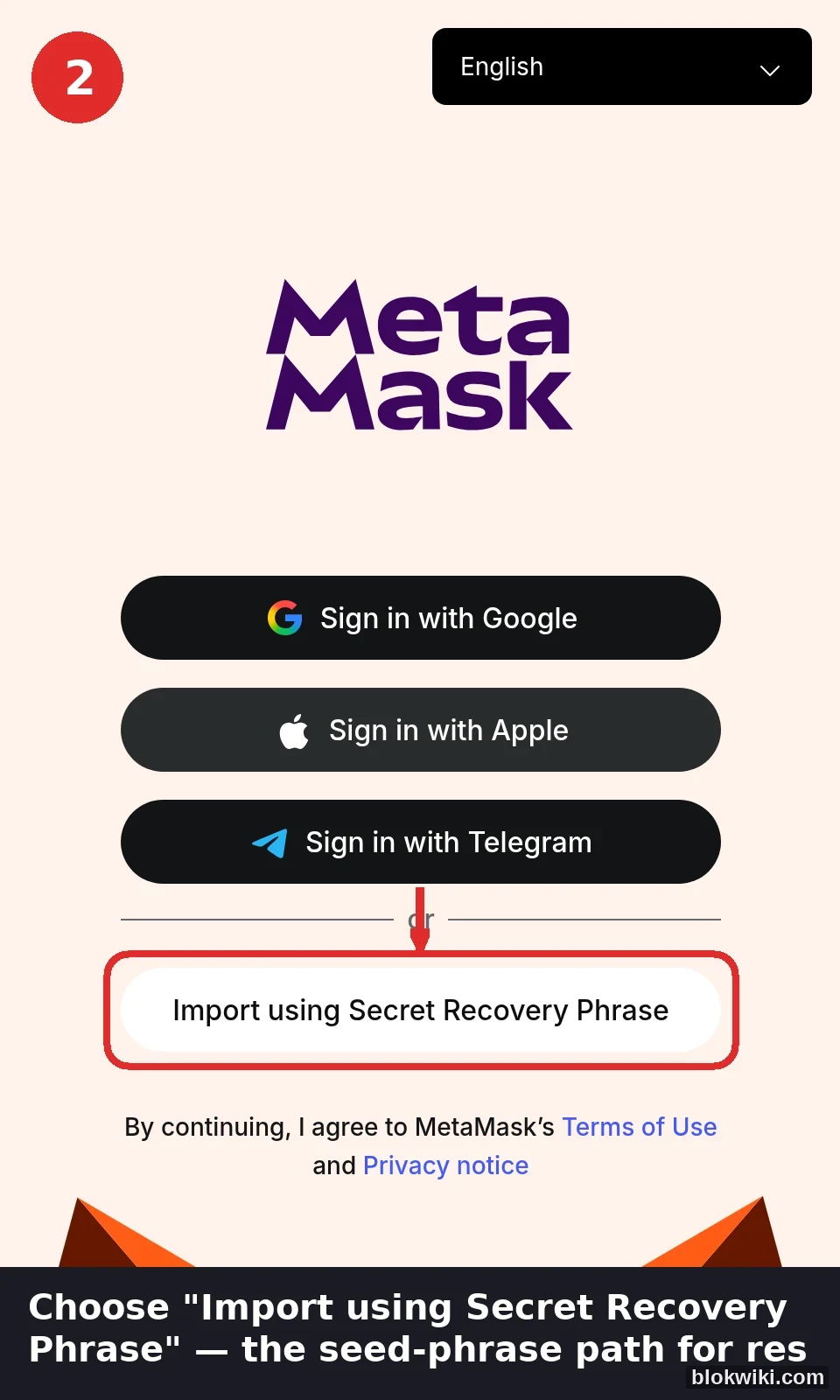
Step 2: choose "Import using Secret Recovery Phrase"
Google, Apple and Telegram logins sit at the top; the seed-phrase entry is below the divider. To restore an existing wallet, click "Import using Secret Recovery Phrase" — social login creates a brand-new wallet with no connection to your old assets.
Step 3: fill the 12 boxes with your recovery words
The "Import a wallet" screen splits the phrase into 12 boxes. Type the words in order, or paste the whole phrase into the first box and MetaMask splits it automatically. Separate words with single spaces only — no commas, numbering or line breaks. Once all 12 are filled, Continue turns from grey to black.
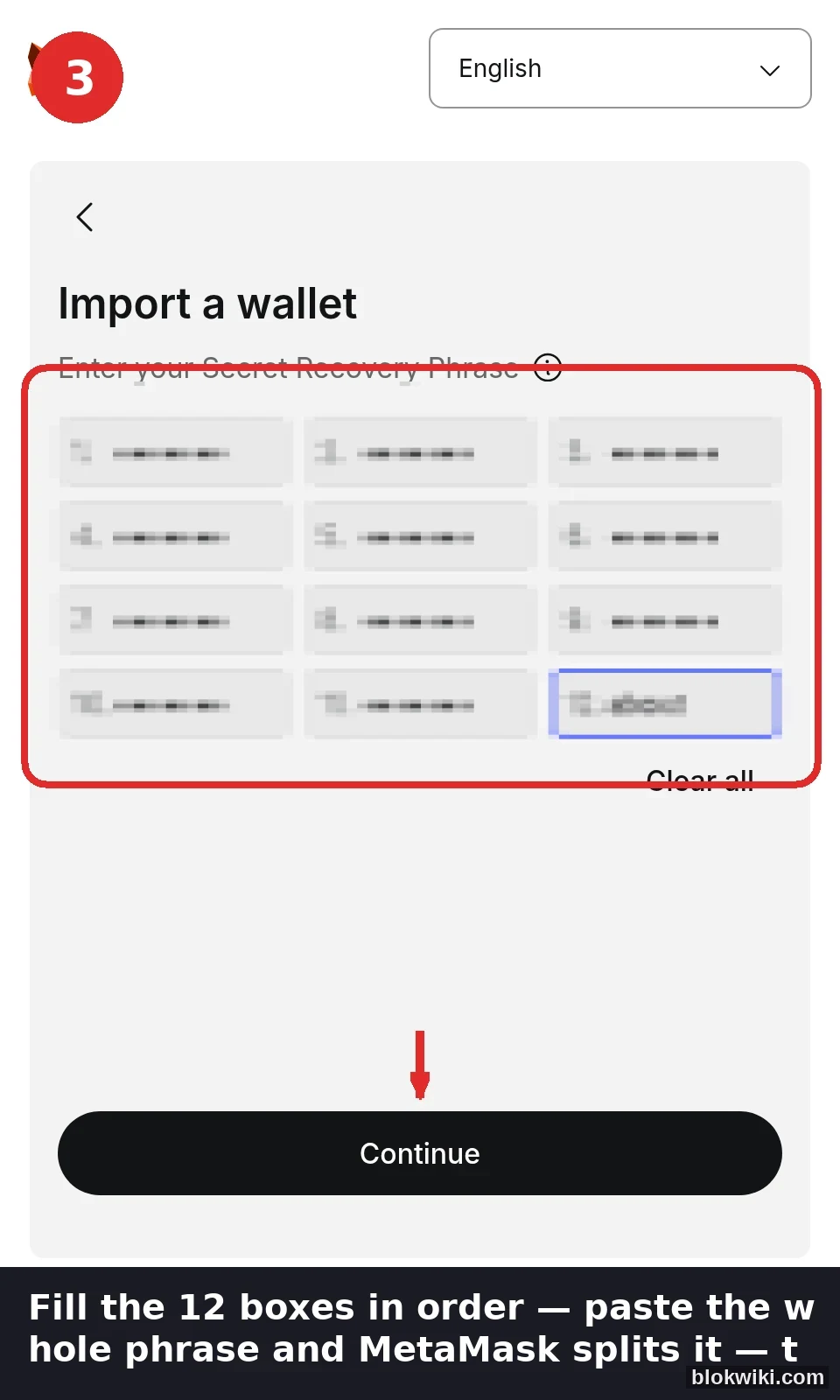
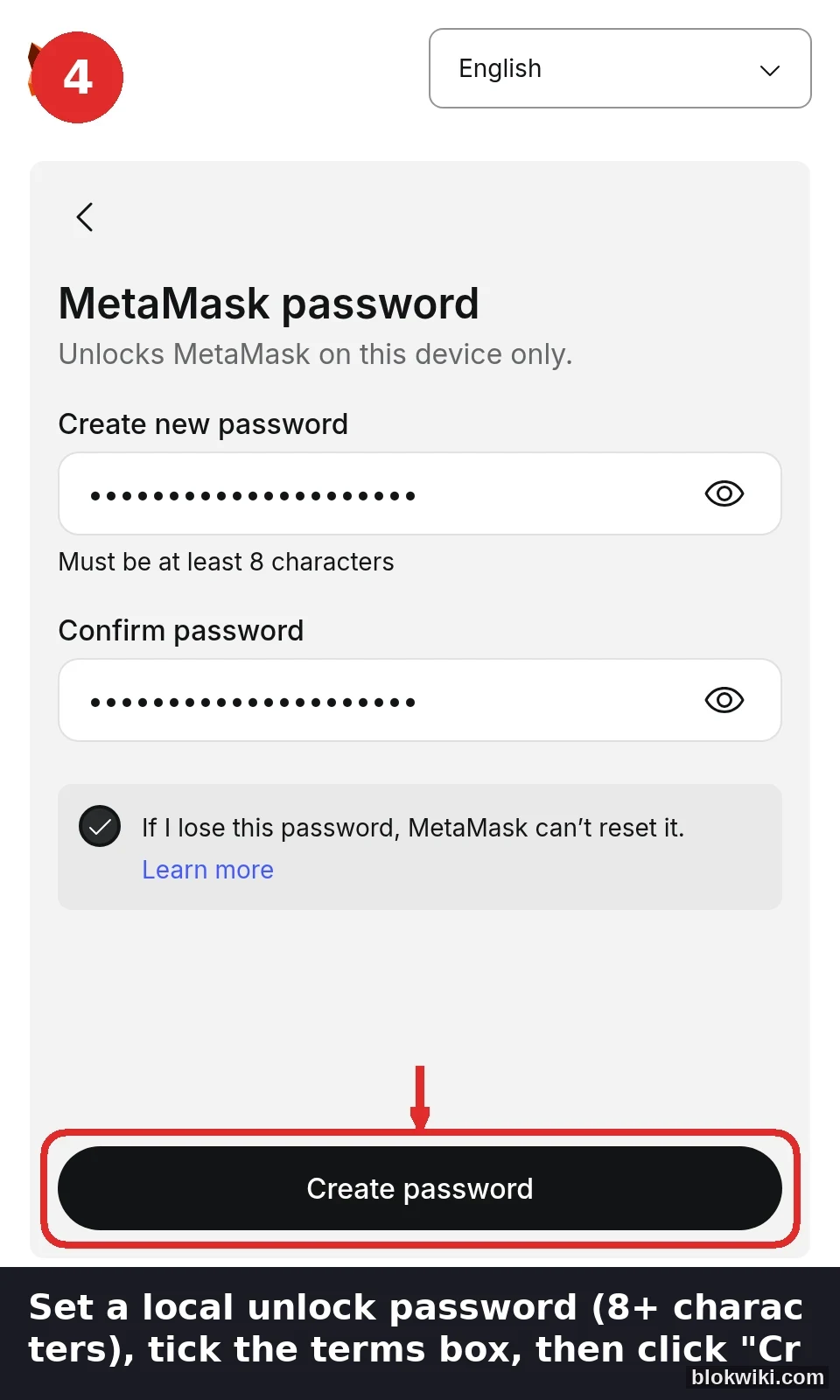
Step 4: set a local unlock password
This password only unlocks the wallet on this device; it is not your recovery phrase. Forget it and you can reinstall and restore with the phrase; lose the phrase and nobody can help. Use at least 8 characters, tick the terms box, then click "Create password".
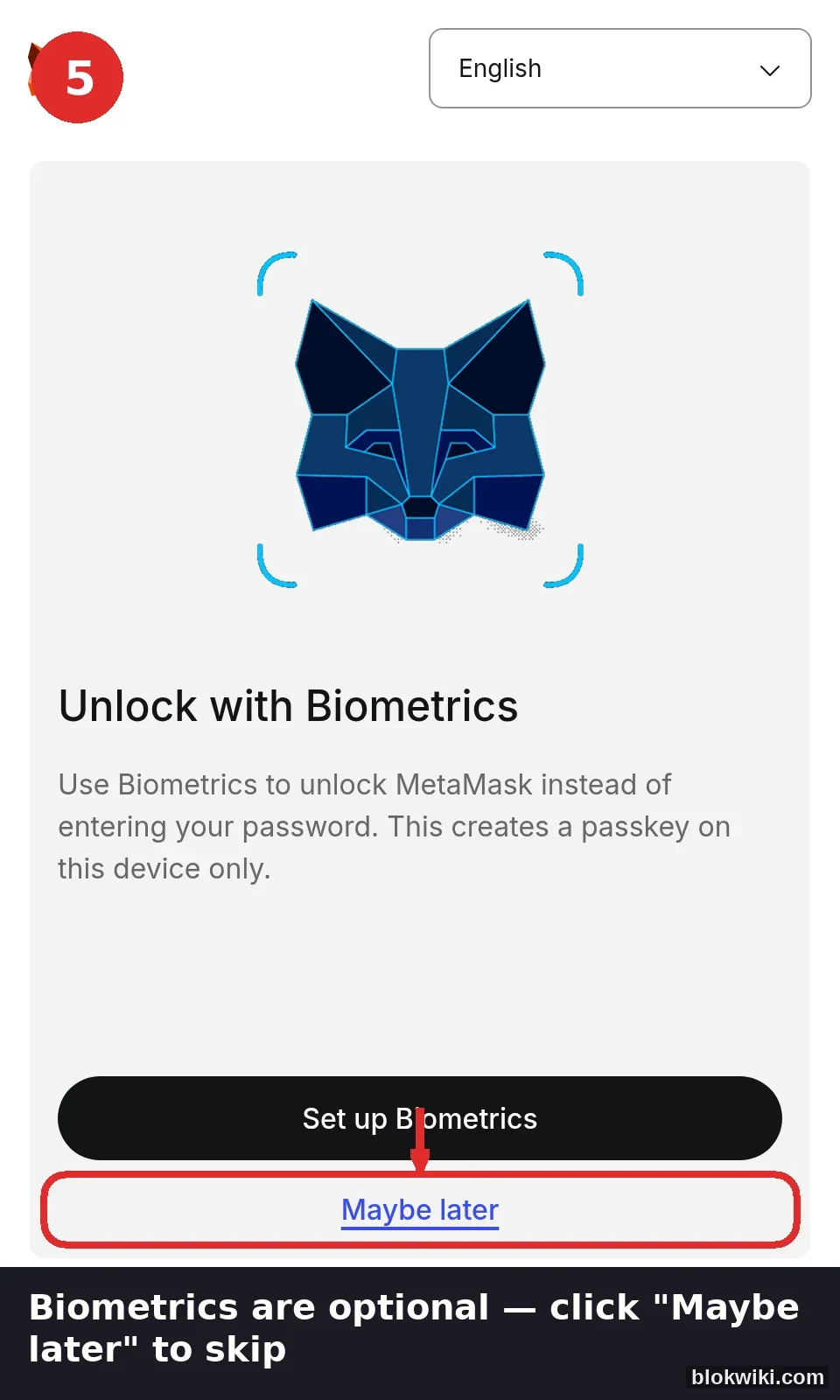
Step 5: biometrics are optional
The next screen offers biometric unlock (fingerprint / face). It is optional — click "Maybe later" and the wallet still works normally, with no effect on the restore result.
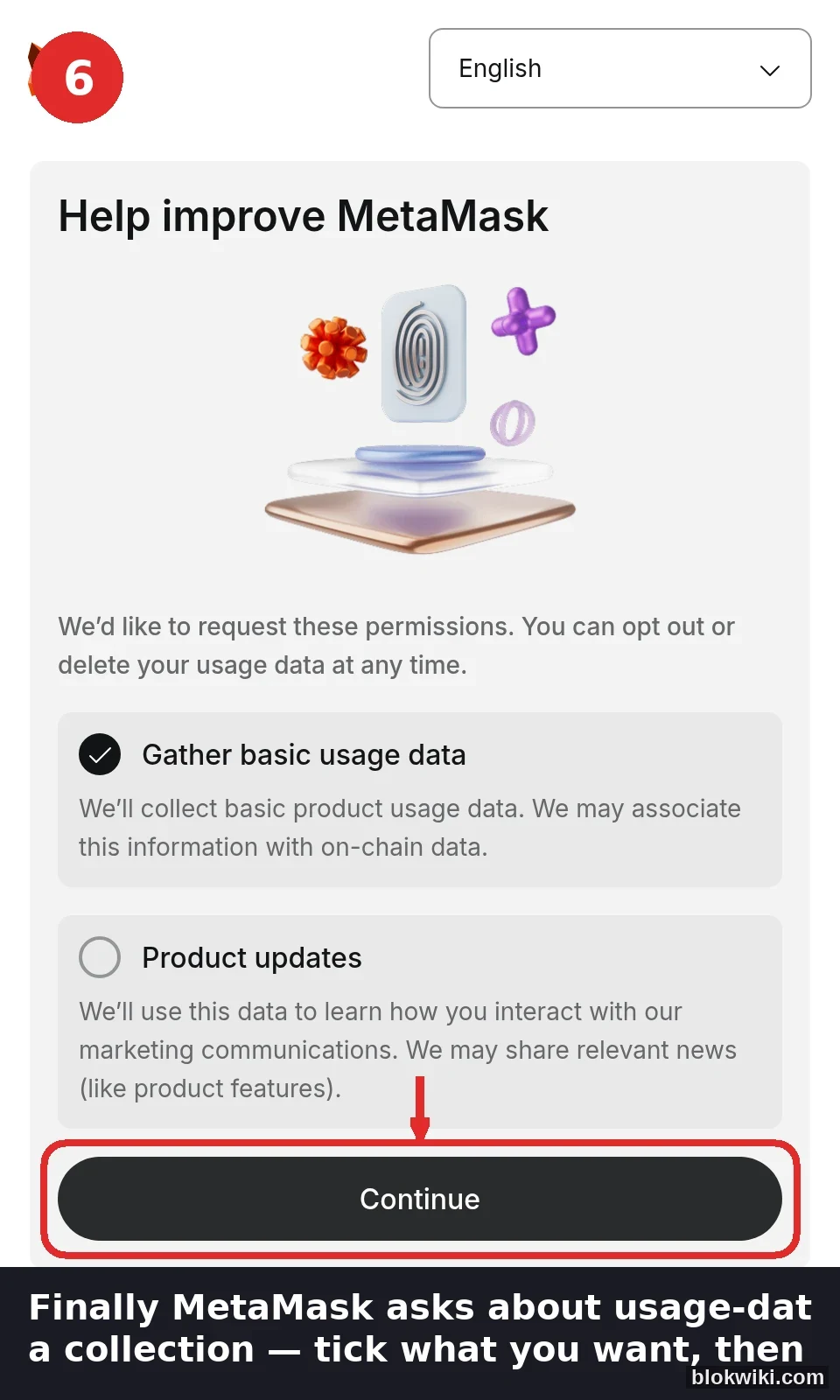
Step 6: choose your data-collection options
MetaMask then asks whether it may collect usage data. This has nothing to do with wallet security — tick what you are comfortable with, then click Continue.
One more screen follows ("Default privacy settings" — keep the defaults and continue) and you land in the wallet home, where the account list and balances should match what you had.
Confirming the restore worked
- Compare the address — the restored address must be identical. If it changed, the phrase is wrong or belongs to a different wallet;
- Check every account — one phrase derives many accounts. If only Account 1 appears but you had more, add accounts manually in the original order;
- Slow balances are normal — on-chain data is refetched and congestion can add minutes;
- Put the phrase away properly and clear any trace of it from the browser.
FAQ
The address is different and the balance is zero — is the phrase wrong?
Probably yes. Check spelling and order first; if both are correct the phrase likely belongs to another wallet you own. Verify the address against your old device or backup before restoring over anything.
I remember the password but not the phrase — can I still recover?
No. The password only protects the local device; the phrase is the wallet. If the old device still works, you can export the phrase from settings (password required) — that is your one chance, so write it down on paper immediately.
Can a wallet created with social login export a phrase?
Wallets created with Google, Apple or Telegram keep the phrase under the wallet's management and let you export it in settings, but the path differs from a standard wallet. If you intend to self-custody long term, create or import with a seed phrase so you hold the recovery power. For the trade-offs between self-custody and exchanges, see how to choose a wallet and approvals and phishing defence.
Should the restored wallet stay with me or go to an exchange?
Restoring does not change ownership. Keep long-term holdings in self-custody and move coins to an exchange only when you need to trade. Before choosing a platform, check its local status — Indonesian users should verify the OJK whitelist (see our Indonesian app checklist).
Risk Notice
Risk Notice & Affiliate Disclosure: Trading and holding cryptocurrency carries a risk of capital loss, and if a recovery phrase leaks or is lost the assets are gone for good; nothing here is investment advice. This article contains affiliate links — signing up through them may earn us a commission at no extra cost to you and does not affect our independent judgment. Screenshots reflect MetaMask extension v13.52; button positions and wording may change between versions, so follow the interface on your own device. Information current as of October 2026.